Faster, Cleaner Browsing on Android: Meet Aloha’s New Adblock Toolkit
Aloha Browser for Android now lets you hide distracting page elements manually and add custom Adblock Plus filter lists for cleaner browsing.

Even a good ad blocker cannot catch everything.
Sometimes a webpage still has elements you want to avoid: a floating video, a sticky banner, an embedded media block, or other distracting parts that interfere with what you came to read. The latest update for Aloha Browser on Android addresses these issues.
Sometimes, webpages include elements you'd rather avoid—like floating videos, sticky banners, embedded media, or other distracting parts that interrupt your reading.
With our latest release, we are adding two new tools to Adblock that give you more control over what stays on the page and what does not:
- Hide distracting items to remove elements manually
- Custom filter lists to add your own Adblock Plus-compatible filters
These features were added in response to user requests and are designed to make browsing cleaner, faster, and easier to manage.
Hide distracting elements using Aloha Browser for Android
1. Hide distracting items on a page
Some elements are not blocked automatically, even when Adblock is on. That can include sticky sections, embedded media, or other visual elements that still interrupt the page.
Now you can hide them manually.
How to use Hide distracting items
- Open the page you want to clean up.
- Tap the main menu button in the center of the bottom bar.
- Tap Hide distracting items.
- Tap the element you want to remove.
- Save the change.
Once saved, the page will stay cleaner on future visits based on that saved setting.
If you want to undo the change, you can restore the default view in Adblock & website settings at any time.
This gives you a simple way to remove the parts of a page that regular blocking may leave behind.
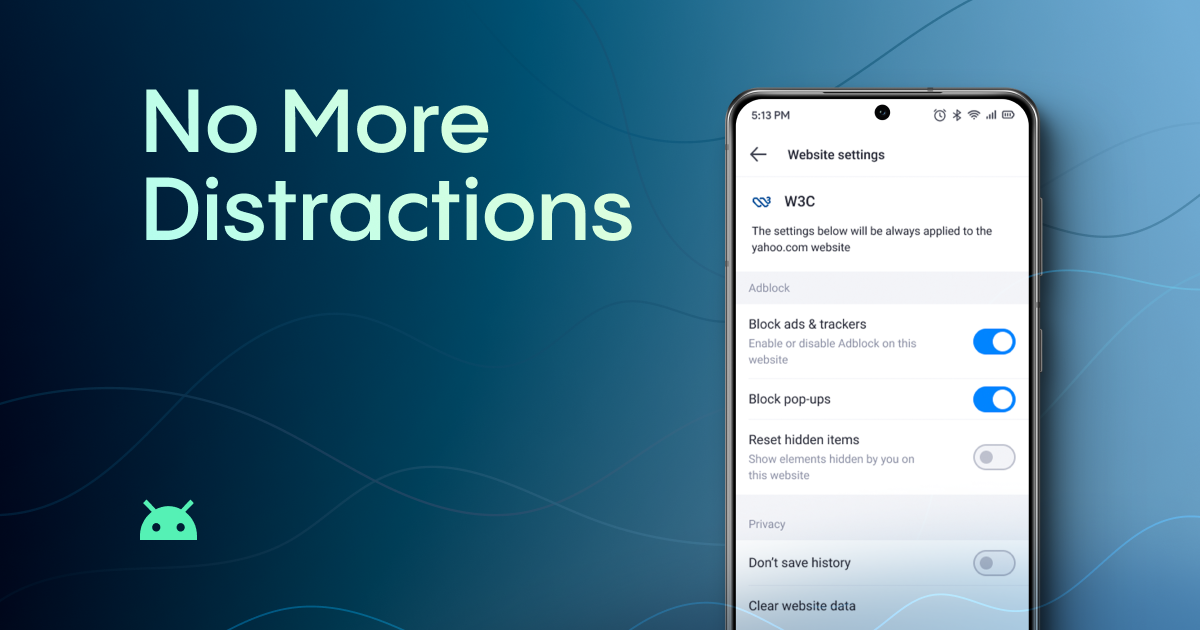
With great power comes great responsibility. You can completely break the website, so to restore everything to its previous state, you need to:
- Tap the main menu button in the center of the bottom bar.
- Select Adblock & website settings.
- Tap Reset hidden items.
Add a custom Adblock filter list for your privacy
2. Add custom Adblock filter lists
This update also adds support for custom Adblock Plus-format filter lists.
Many users requested greater flexibility in using Adblock, such as the option to add lists tailored to their browsing needs. That feature is now available in Aloha Browser for Android.
How to add a custom filter list
- Open Settings.
- Tap Adblock.
- Open Filter lists.
- Go to Custom filter lists.
- Add the URL of the list you want to use.
You can also remove a custom list later if you no longer need it.
This feature gives you more control over how content is filtered and makes it easier to tailor the browsing experience to your own preferences.
Why You Should Give It a Try
Every extra tap to dismiss a banner or scroll past an embedded player is a small interruption — but over a full browsing session, they add up. These two features tackle the problem from both sides: hide distracting items handles the one-off annoyances that slip through filters, while custom filter lists let you shape what gets blocked in the first place.
Together, they turn Adblock from a set-and-forget tool into something you can adapt to the way you actually browse.
Update your Aloha Browser for Android to try both features — and if they improve your browsing experience, we would love to hear about it. Share your story with us!