Never Miss a Moment: How to Record Streams in Aloha Browser for Android
Tired of missing out on "watch it now or lose it" live streams? Aloha Browser's new Stream Recording for Android lets you archive live content in high definition, clutter-free. Here is how to get started.

For years, the internet has often worked on a “watch it now or lose it” basis. You’ve used Aloha Browser to save many videos, but live streams were different. If you weren’t there in real time, a rare performance or a time-sensitive broadcast could be gone for good.
You asked for a better way, and we built it. Stream Recording is now available in Aloha Browser for Android* as a dedicated feature for the collectors and archivists in our community.
A Tool for the Modern Collector
Stream Recording is a Premium feature that records the stream itself, not a basic screen capture. That means your recording is saved without your phone’s UI, pop-ups, or on-screen controls. Whether it’s a rare live broadcast or a specific moment you want to keep, you can now record it and save it directly to your files.
How to Record Your First Stream
We built Stream Recording into the playback flow you already use. Here’s how to get started.
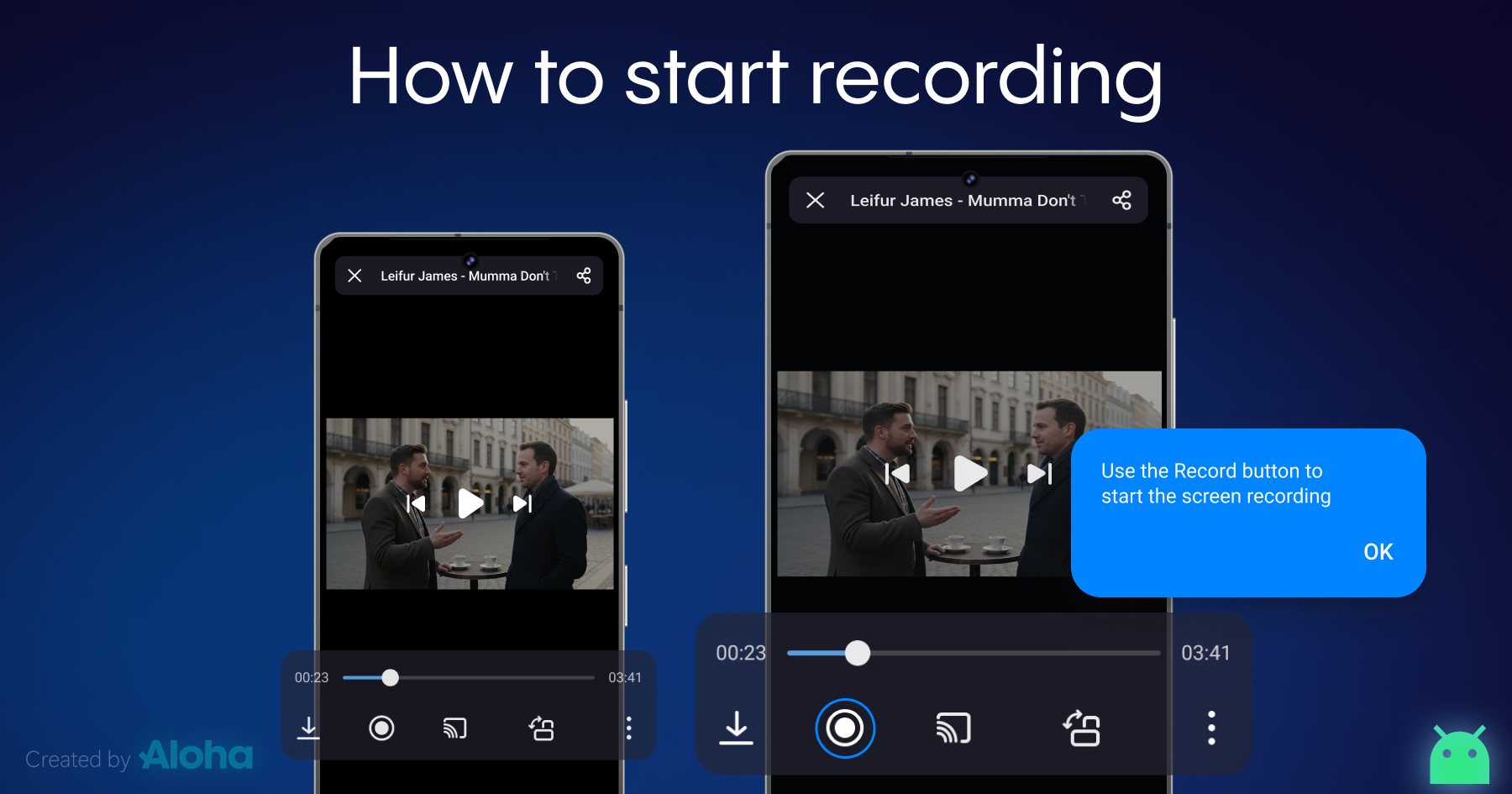
1. Find the Record button
You can start a recording from two places:
- Media toolbar: appears on the webpage when a video starts playing.
- Aloha Player: in full-screen mode, the Record button is available in the player controls.
2. Start recording
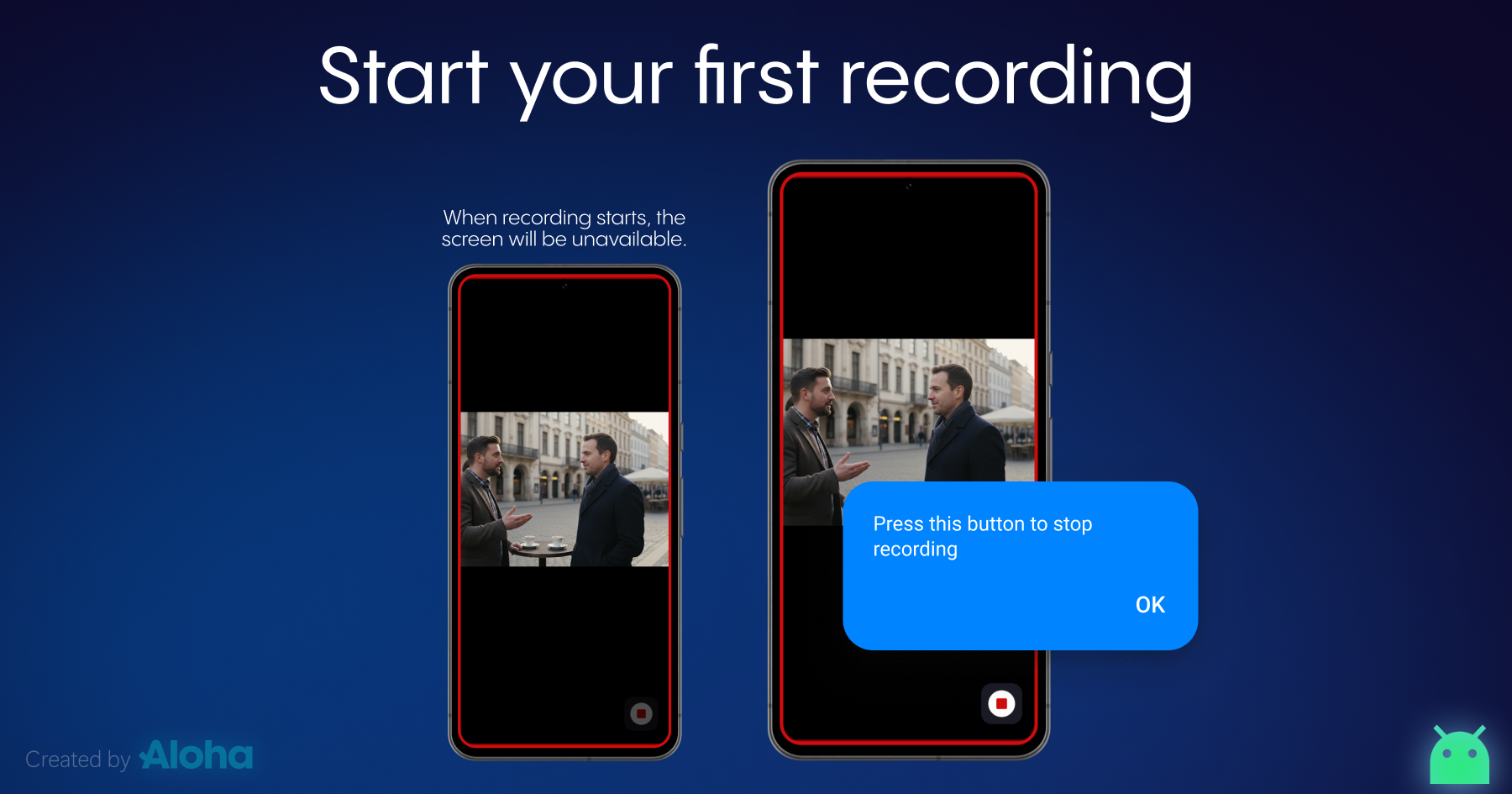
After you tap Record, the app switches to a focused recording mode:
- Visual indicators: a red border appears, and a “Recording started” notification confirms it’s running.
- Locked controls: to prevent accidental taps, the interface locks, and only Stop remains available.
- Unobstructed viewing: after a few seconds of inactivity, the Stop button becomes transparent so you can keep watching while the recording continues.
3. Stop and save
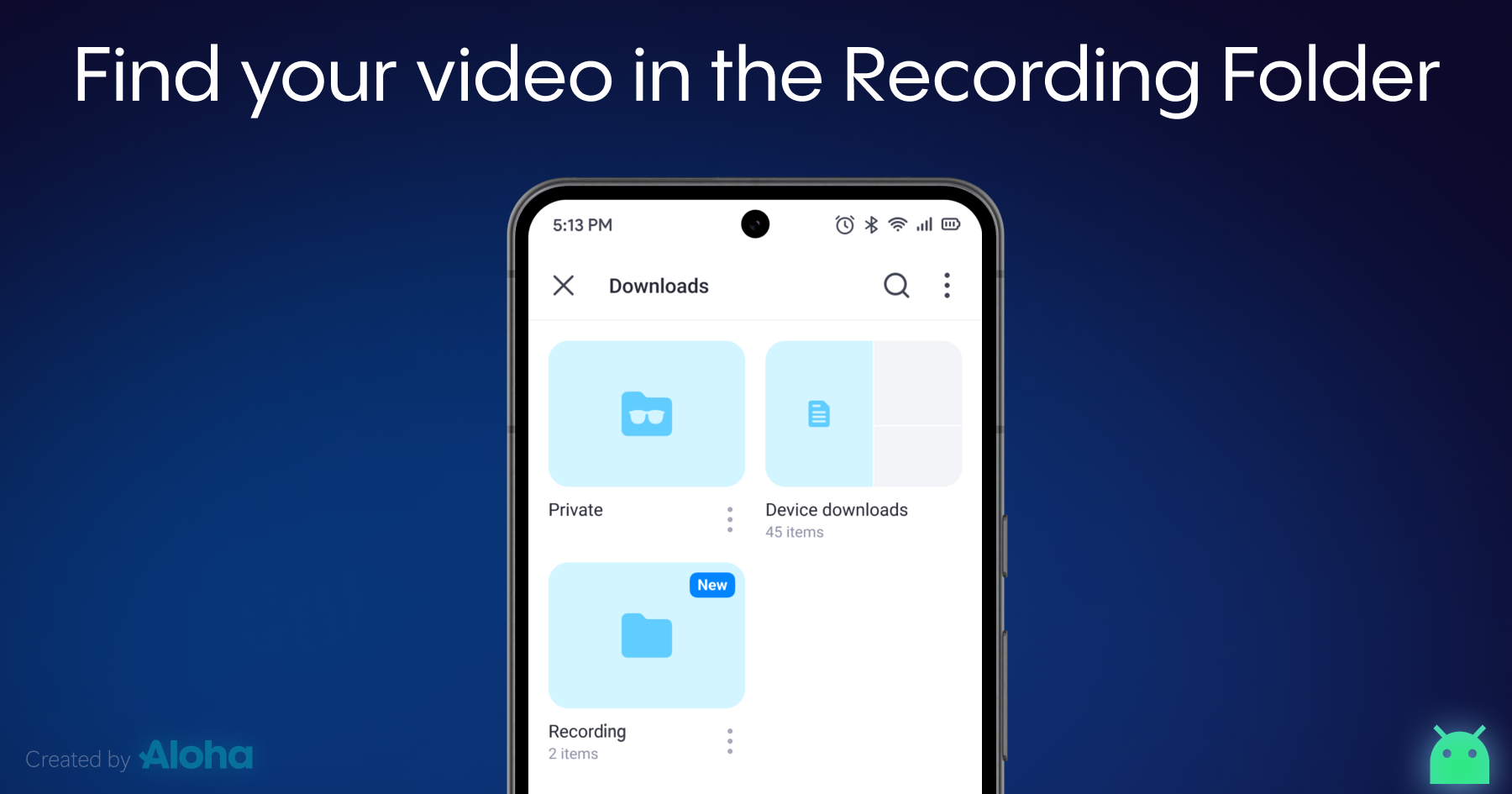
To finish, tap Stop. Your video is processed automatically and saved to a dedicated Recording folder in Aloha Files.
Pro-Tips for Perfect Captures
For best results, keep these points in mind:
- Keep Aloha Browser open: recording works only while Aloha Browser stays open on the current tab. If you minimize the app or switch away from the page, the recording stops automatically and saves what was captured up to that moment.
- Stream-only capture: Stream Recording saves the video feed, not your entire phone screen.
- Premium access: Stream Recording is available to Premium users (including users with Premium access granted via promotions or subscriptions, where applicable).*
We’re proud to keep evolving Aloha Browser into an even more powerful collector’s tool for Android. Update the app and start saving the streams that matter to you.
We Want to Hear From You
We continually improve based on genuine feedback. Share your experience with Stream Recording on our community site. If you run into technical issues, contact our support team at support@alohabrowser.com.
* Notes: Stream Recording is currently in early access and is available to Premium users. Functionality may be limited or unavailable on older phone models. Stream recording may also be unsupported on some websites at this time; we’re working to expand compatibility. If you don’t have Premium yet, you may be able to get access through our updated Referral Program.