Ad-Free Links in Every App, Plus a Smarter AI Assistant
Set Aloha as your default browser and links inside other apps open ad-free, thanks to Android Custom Tabs. Plus: pick your AI model and turn web search on when you need it.

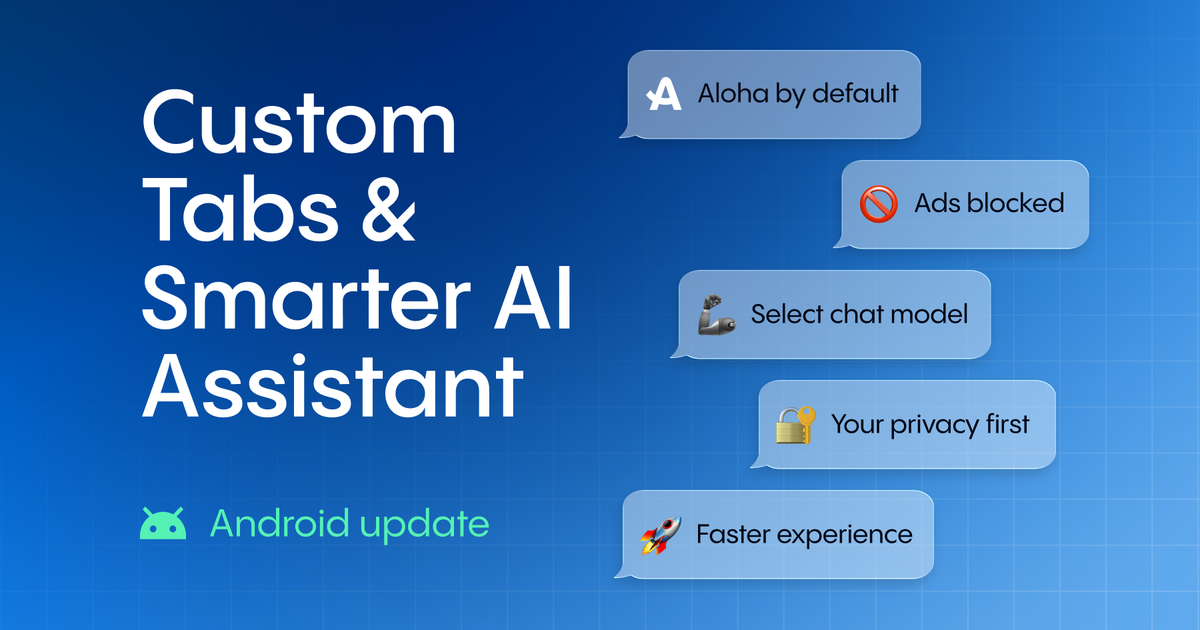
Aloha Browser for Android now supports Android Custom Tabs. Set Aloha as your default browser, and links you open in other apps (a messenger, a social feed, a news app) will load in Aloha's engine with ad and tracker blocking enabled. The same release also updates the AI assistant: you can choose which model answers you directly on the chat screen, and switch on web search when needed.
You already know what browsing in Aloha feels like. No ads, no trackers, and your passwords are ready whenever you need them. Until now, that stopped at the app's edge.
Tap a link in most apps, and it opens in that app's mini-browser, the one you never chose and probably never think about. No ad blocking, no saved passwords, just the ads you thought you had left behind. It's the browser nobody asked for, quietly bundled into the apps you use every day. This update gives those links a better place to land.
What Android Custom Tabs means for you
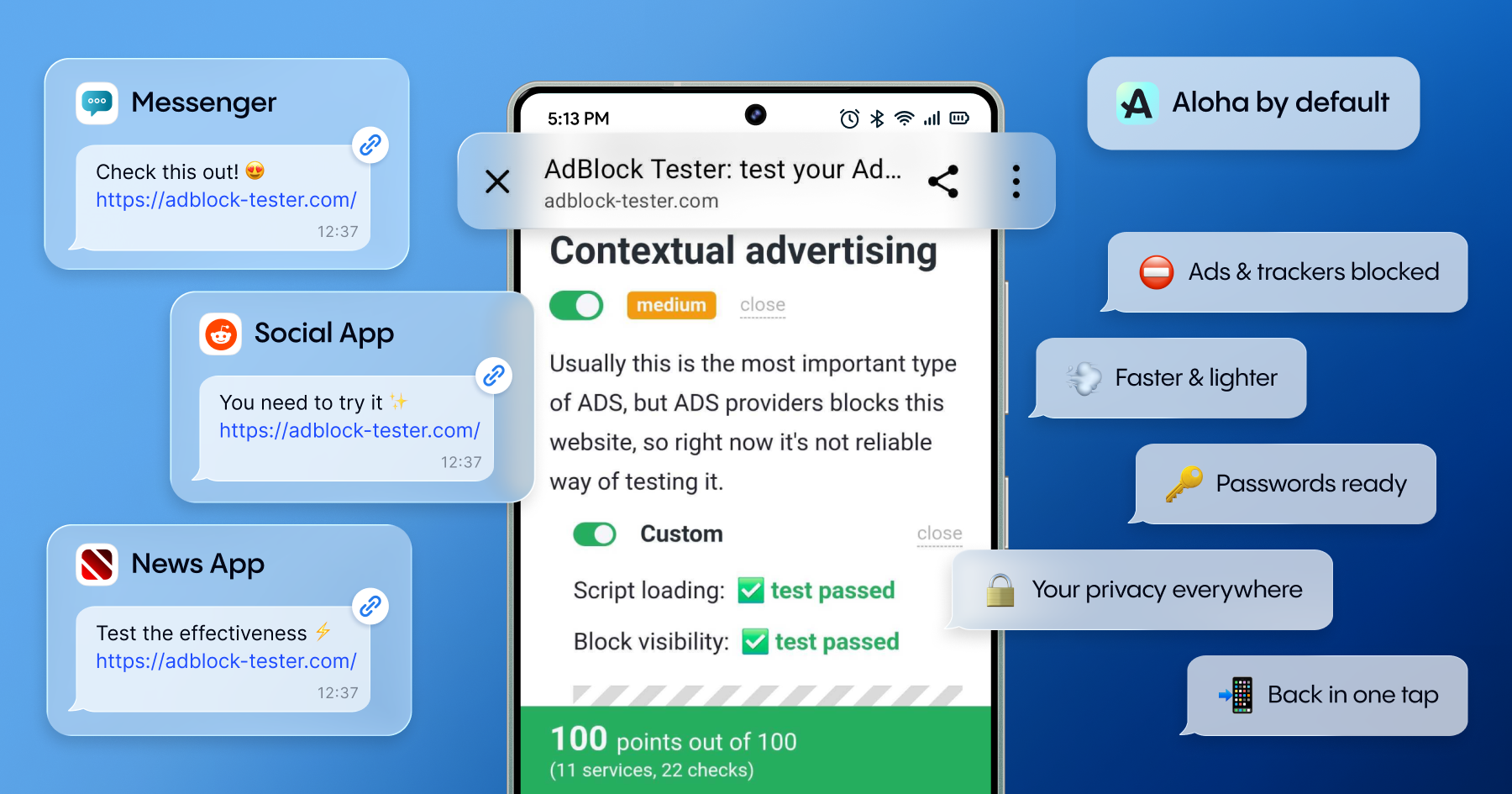
Most Android apps don't build their own browser. When you tap a link, they use a system service called Custom Tabs to ask your default browser to render the page. Once Aloha is your default browser, those in-app links use Aloha's engine instead.
Here is what changes in practice:
- Ads and trackers are blocked in the messenger, the social app, and the news reader, not just in Aloha.
- Pages tend to load faster and use less data because the advertising and tracking scripts are usually the heaviest elements on a page and they never load.
- Your saved passwords work, so you can log in without switching apps or retyping.
- Whatever privacy settings you set in Aloha apply to these links as well.
- The page opens in a lightweight tab at the top, and closing it returns you to the app you were using.
That is the gap this closes. A private browser only covers the browsing you do inside it, and a lot of browsing now happens through links other people send you.
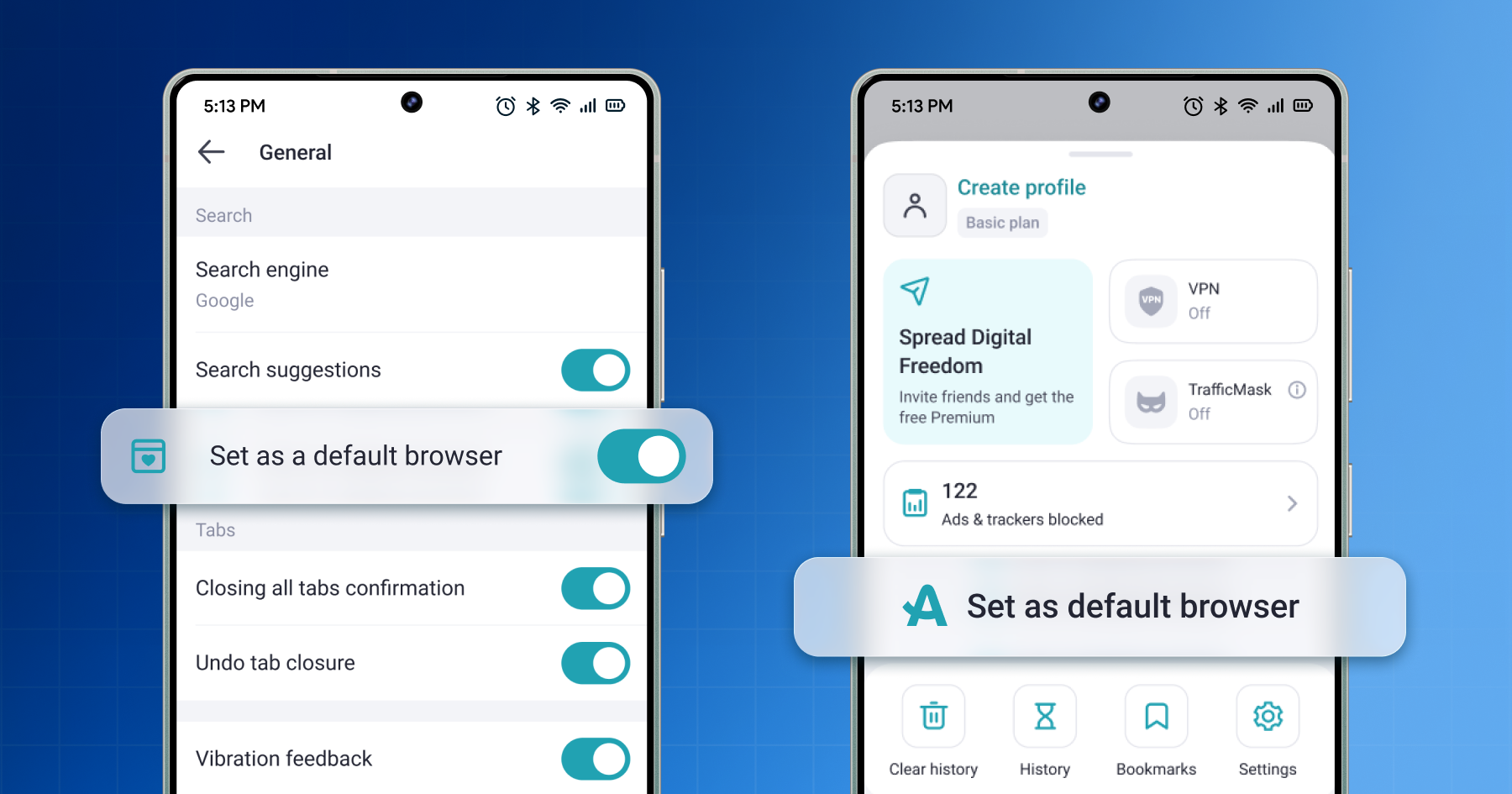
How to set Aloha as your default browser on Android
It takes about fifteen seconds, and there are two ways to do it.
From the Start page:
- Open the Start page.
- Open the main menu.
- Tap Set as default browser.
From Settings:
- Open the main menu on any page.
- Go to Settings, then General.
- Tap Set as default browser.
Once Aloha is your default, this applies to every app that uses Custom Tabs.
Note that a few apps include a fully custom in-app browser instead of relying on the system service, and these apps won't switch over. They are exceptions rather than the norm.
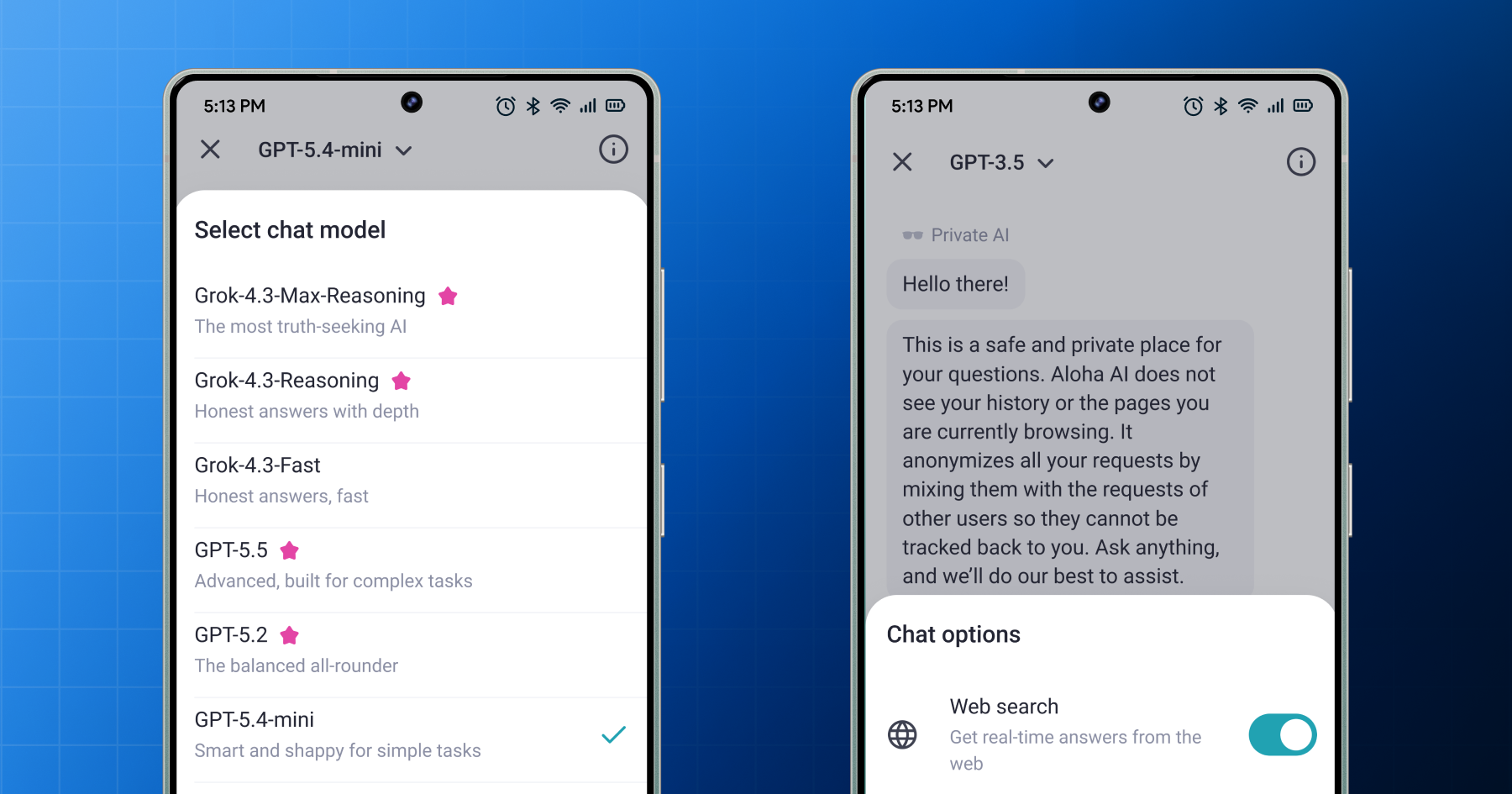
AI assistant: pick your model and turn on web search when you want it
The assistant has two changes.
First, you can pick your model right on the chat screen, without opening settings. Different models are better at different things, so you might use one for a quick answer and another for longer reasoning or help with writing. You can switch between them in the middle of a conversation with one tap.
Second, you can now turn on web search for the Private AI assistant, so it can pull in current information when you need it. A language model is trained up to a fixed date, so if you ask about recent news, a current price, or last night's score, a model with no web access may give you something outdated or nothing at all. With web search on, the assistant reads live pages and answers based on what's online now. It stays off by default and only searches when you ask.
Your privacy is the same either way. Aloha's AI assistant is built to keep your requests anonymous, so the model provider should not be able to identify who is asking, no matter what your web search setting is. Turning it on changes what the assistant can see on the web, not who can see you.
Use whichever fits the moment. Leave it off for a quick answer from the model, and turn it on when you need today's facts.
Get the update
Both features are in the latest Aloha for Android on Google Play. Update the app, then spend fifteen seconds setting Aloha as your default browser. Of the two, that is the setting that most affects how the rest of your phone behaves.
Ad-free links across your apps and an assistant that searches only when you tell it to. That is what is new in this update.
Frequently Asked Questions
How do I block ads in links that open inside other apps on Android?
Set Aloha Browser as your default browser. Apps that use Android Custom Tabs then hand their links to Aloha, so ad and tracker blocking applies to those in-app pages. Apps that include a fully custom in-app browser are the exception and will continue using their own.
What are Android Custom Tabs?
Custom Tabs is a system service that most Android apps use to open links. Instead of building their own browser, apps ask your default browser to render the page. When Aloha is your default browser, those pages are rendered by Aloha's engine.
How do I set Aloha as my default browser on Android?
To set Aloha as your default browser, open the Start page menu and tap Set as default browser, or go to Settings > General. After that, Aloha handles links from apps that support Android Custom Tabs, so your ad blocking and privacy settings apply to them too.
Why do links keep opening in an in-app browser?
Many apps default to their in-app browser or the system default. Once Aloha is your default browser, apps that use Custom Tabs route their links to Aloha instead. If a link still opens inside the app, check the app's settings; many apps have an internal option to choose between an in-app viewer and your default browser, which you can toggle manually.
Can I choose which AI model the assistant uses?
Yes. Pick your model directly on the chat screen and switch between models in the middle of a conversation with one tap, without opening settings.
Does Aloha’s AI assistant search the web?
Only when you turn it on. Web search is a toggle that starts off, so the assistant answers from the model itself unless you switch it on for live, up-to-date information.
Is the AI assistant private?
Aloha's AI assistant is built to keep your requests anonymous, so the model provider should not be able to identify who asked, whatever your web search setting. Turning web search on changes what the assistant can see online, not who can see you.