How to Customize Aloha Browser: Wallpapers, Themes, Snips, and More
Change your wallpaper, move the search bar, organize the Start page, manage Snips, and adjust the look of Aloha Browser on iOS and Android.

You open your browser throughout the day, so small layout choices matter. Aloha Browser lets you change the Start page, move the search bar, tidy shortcuts, manage Snips, and adjust the app's appearance.
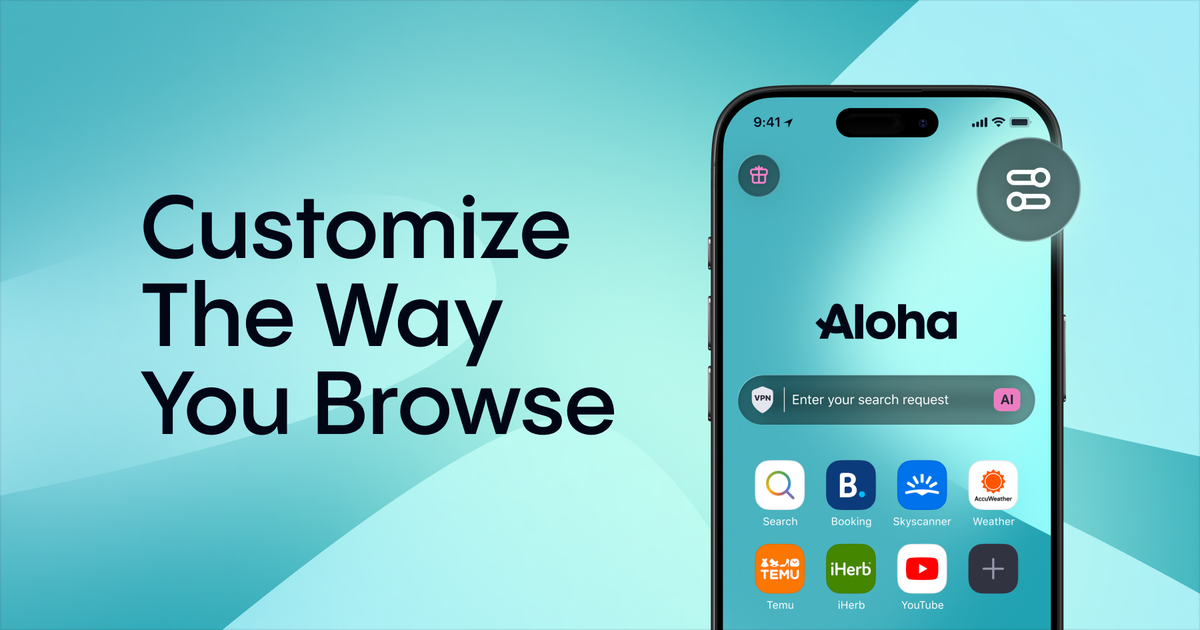
Open a new tab and tap the customization button in the upper-right corner of the Start page. This opens the options available on your device. Some controls may also appear under Settings → Start page or Settings → Appearance, depending on your platform and Aloha Browser version.
Choose a wallpaper, or keep the Start page simple
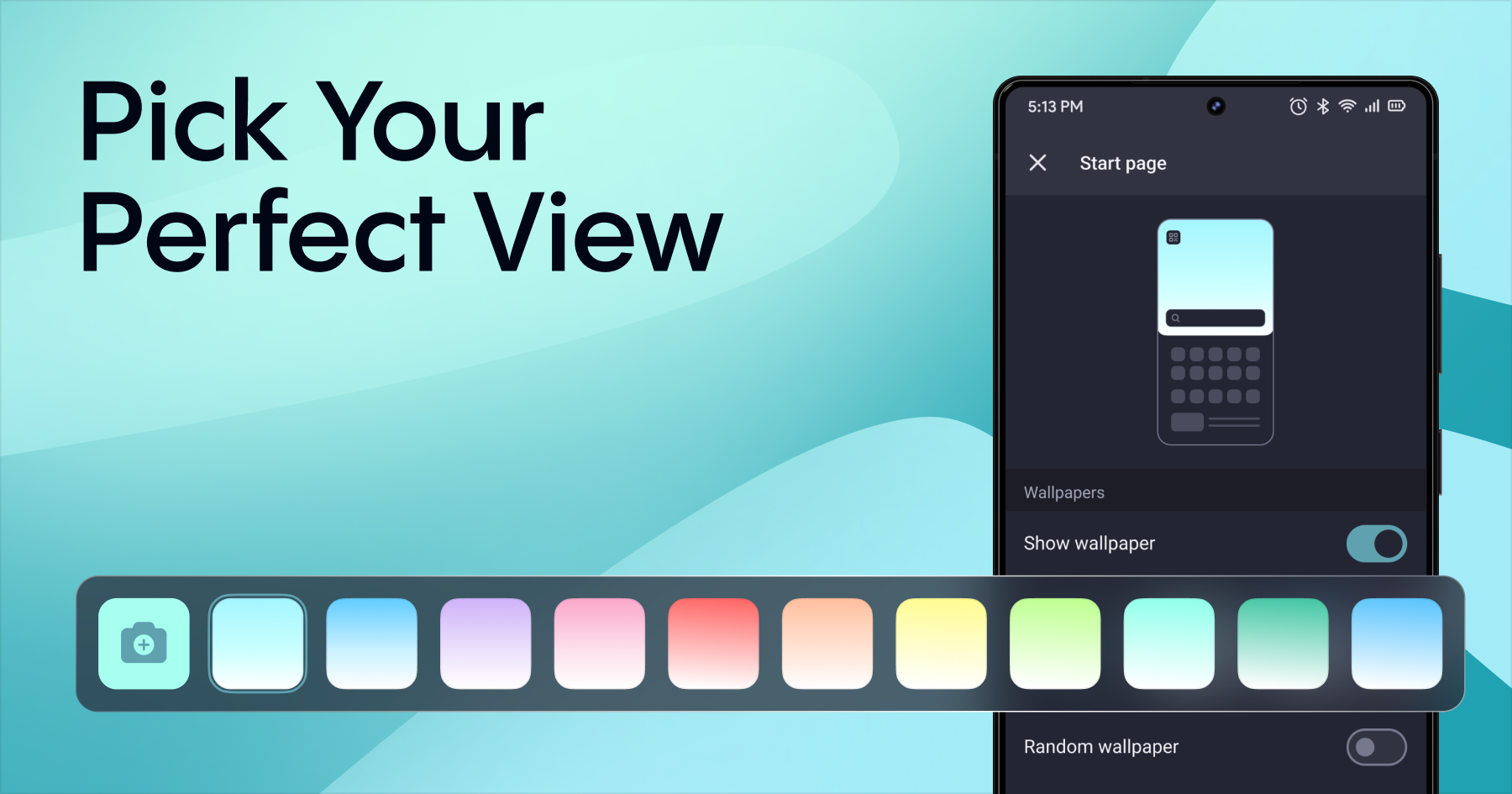
Start with the background. You can choose one of Aloha's included wallpapers or use a photo from your device. If you prefer a quieter Start page, you can hide the wallpaper where that option is available.
Choose the background that leaves search, bookmarks, and Snips easy to see. A detailed photo feels more personal. A plain background reduces visual clutter.
Move the search bar within easier reach
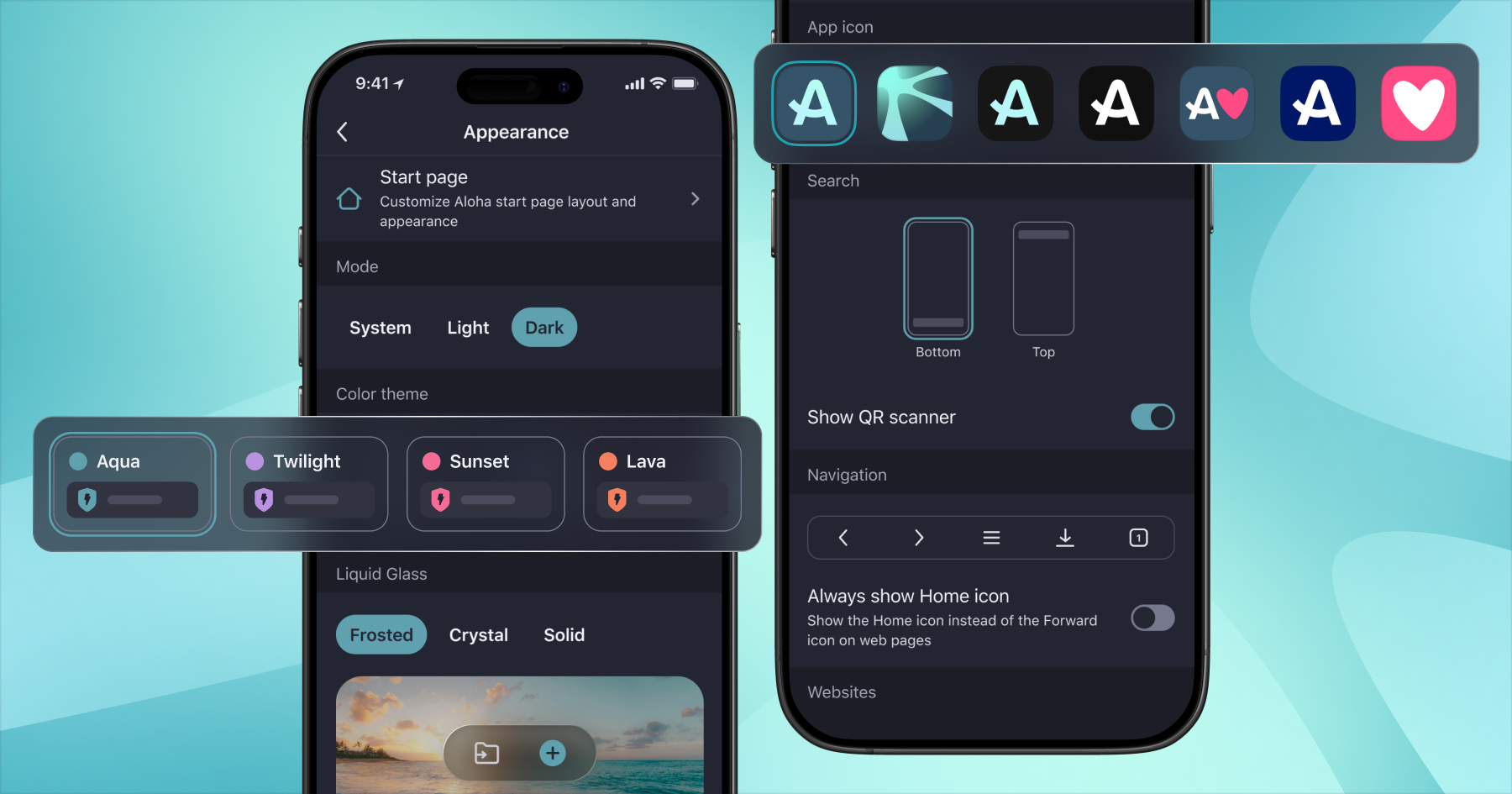
You can place the search bar at the top or bottom of the Start page.
The bottom position is easier to reach with one hand on a larger phone. The top position preserves the familiar layout used by many browsers. Try both and keep the one that feels more natural.
Keep only the Start page shortcuts you use
A useful Start page should not feel crowded. Use its customization controls to show or hide available shortcuts, such as bookmarks and the QR code scanner.
You can also edit the sites shown on the Start page. Add the pages you visit often, rearrange them, and remove anything you no longer need. The result is a compact set of shortcuts tailored to your routine.
Use Snips to follow the parts of pages that matter
Snips (available on iOS, not on Android) let you save specific parts of webpages to a personal dashboard. Created Snips update automatically, so you can follow changing information without reopening and refreshing the full page.
For example, you can use Snips to:
· watch a product price;
· follow a sports score;
· keep a recipe step close while cooking;
· monitor tickets, travel prices, or a news update.
Change the theme and app icon
Open Settings → Appearance to adjust Aloha Browser's overall look. Depending on your device and version, you can choose a color theme, switch between light and dark modes, and select a different Aloha app icon for your Home Screen.
On iOS, you can adjust the font size and choose how transparent the Aloha Liquid interface should be. The available Liquid Glass levels are Crystal, Frosted, and Solid.
On Android, in addition to adjusting font size, force dark mode can prompt compatible webpages to use a dark appearance even when they do not provide their own dark theme. Results can vary by site, so turn it off if a page becomes harder to read.
Take five minutes to make Aloha yours
Start with the setting you notice most. Move the search bar closer to your thumb, remove shortcuts you don't use, or choose a calmer theme. You can complete the main changes in a few minutes.
Update Aloha Browser, open the Start page customization controls, and see which setup works best for you. Then tell us in the comments or in the Aloha Community which theme you use, and which customization option we should add next.
Frequently asked questions
How do I change the wallpaper in Aloha Browser?
Open a new tab and tap the customization button in the upper-right corner of the Start page. You can choose an included wallpaper or use an image from your device. Depending on your platform and version, the same controls may appear under Settings → Start page settings.
Can I move the Aloha search bar to the bottom?
Yes. Open Settings → Start page settings, then change the search bar position to Bottom. You can switch it back to Top or Bottom at any time.
What are Snips in Aloha Browser?
Snips are saved sections of webpages that appear on a personal dashboard and update automatically. They can help you follow prices, scores, news, tickets, and other changing information without refreshing the full page.
How do I use Force dark mode on Android?
Open Settings → Appearance and enable Force dark mode. This feature maintains the dark theme across all sites between app launches.
How do I change the Aloha app icon?
Open Settings → Appearance and review the available app icons. The selection can vary by platform and Aloha Browser version.